Sunday, April 22, 2012

Solution to Chapter 7 Exercises of Learning jQuery 3rd Edition

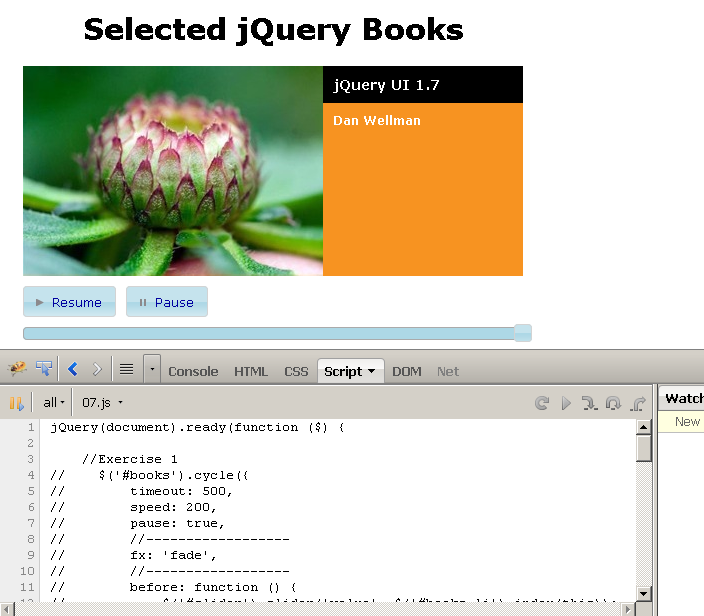
My solutions to Learning jQuery 3rd Edition Chapter 7 exercises: 


1. Increase the cycle transition duration to half a second, and change the animation such that each slide fades out before the next one fades in. Refer to the Cycle documentation to find the appropriate option to enable this.

jQuery(document).ready(function ($) {
    $('#books').cycle({
        timeout: 500,
        speed: 200,
        pause: true,
        //------------------
        fx: 'fade',
        //------------------
        before: function () {
            $('#slider').slider('value', $('#books li').index(this));
        }
    });

});


2. Set the cyclePaused cookie to persist for 30 days.


jQuery(document).ready(function ($) {
    $('<button>Pause</button>').click(function () {
        $('#books').cycle('pause');
        //-----------------------------------------------
        $.cookie('cyclePaused', 'y', { expires: 30 });
        //-----------------------------------------------
        return false;
    }).button({
        icons: { primary: 'ui-icon-pause' }
    }).appendTo('#books-controls');

});


3. Constrain the title box to resize only in ten pixel increments.

jQuery(document).ready(function ($) {
    $('#books .title').resizable({
        handles: 's',
        //--------------------
        distance: 10
        //--------------------
    });

});


4. Make the slider animate smoothly from one position to the next as the slideshow advances.

jQuery(document).ready(function ($) {
    $('<div id="slider"></div>').slider({
        min: 0,
        max: $('#books li').length - 1,
        slide: function (event, ui) {
            $('#books').cycle(ui.value);
        },
        //-------------------
        animate: true
        //-------------------
    }).appendTo('#books-controls');

});


5. Instead of letting the slideshow loop forever, cause it to stop after the last slide is shown. Disable the buttons and slider when this happens.


jQuery(document).ready(function ($) {
    $('#books').cycle({
        timeout: 500,
        speed: 200,
        pause: true,
        fx: 'fade',
        //---------------
        nowrap: true,
        //---------------
        before: function () {
            $('#slider').slider('value', $('#books li').index(this));
        }
    });

});


6. Create a new jQuery UI theme that has a light blue widget background and dark blue text, and apply the theme to our sample document. 


a. Go to http://jqueryui.com/themeroller/
b. Click on the "Content" tab as shown in the image below:


c. Click on the "Clickable: default state" tab and do the same thing you did in step b.
d. Click "Download theme" button
(Download the zip file and integrate the css and js files contained in the zip file into your site)


Free Lessons for Chruch Pianists:
Free lessons, tips and downloads for church pianists

DVD Courses (Reharmonization, Play by Ear!, Arranging, Accompanying, Theory for Church Pianists, etc.):
Over 30 hours of DVD instruction for church pianists


Visit Vitabase for Quality Health Supplements


Friday, April 20, 2012

Solution to Chapter 6 Exercises of Learning jQuery 3rd Edition


My solutions to Learning jQuery 3rd Edition Chapter 6 exercises:


1. When the page loads, pull the body content of exercises-content.html into the content area of the page.

jQuery(document).ready(function ($) {
    $('#dictionary').load('exercises-content.html');
});


2. Rather than displaying that whole document at once, create "tooltips" for the letters in the left column by loading just the appropriate letter's content from exercises-content.html when the user's mouse is over the letter.

jQuery(document).ready(function ($) {
    $('div[id^="letter-"] a').hover(function () {
        var id = $(this).closest('div').attr('id');
        //alert(id);
        $('#dictionary').load('exercises-content.html #' + id);
    }, function () {
        $('#dictionary').html('');
    });

});


3. Add error handling for this page load, displaying the error message in the content area. Test this error handling code by changing the script to request does-not-exist.html rather than exercises-content.html.

jQuery(document).ready(function ($) {
    $.get('does-not-exist.html', function (data) {
        $('#dictionary').append(data);
    }).error(function (jqxhr) {
        $('#dictionary').html('<h2>an error occured: ' + jqxhr.status + '</h2>').append(jqxhr.responsetext);
    });

});


4. Challenge: When the page loads, send a JSONP request to Twitter and retrieve a user's last five messages. Insert the messages into the content area of the page. The URL to retrieve the last five messages of user kswedberg is: http://twitter.com/statuses/user_timeline/kswedberg.json?count=5.

jQuery(document).ready(function ($) {
    // with help from http://wpcanyon.com/tipsandtricks/2-different-ways-for-getting-twitter-status-php-and-jquery/
    var url = 'http://twitter.com/statuses/user_timeline/jeremiahflaga.json';
   
    $.getJSON(url + '?count=5&callback=?', function (data) {
        var html = '';
        $.each(data, function (entryIndex, entry) {
            html += '<h3 class="entry">' + entry.text + '</h3>';
        });
        $('#dictionary').html(html);
    });

});


Free Lessons for Chruch Pianists:
Free lessons, tips and downloads for church pianists

DVD Courses (Reharmonization, Play by Ear!, Arranging, Accompanying, Theory for Church Pianists, etc.):
Over 30 hours of DVD instruction for church pianists


Visit Vitabase for Quality Health Supplements


Sunday, April 15, 2012

Solution to Chapter 5 Exercises of Learning jQuery 3rd Edition


Free Lessons for Chruch Pianists:
Free lessons, tips and downloads for church pianists

DVD Courses (Reharmonization, Play by Ear!, Arranging, Accompanying, Theory for Church Pianists, etc.):
Over 30 hours of DVD instruction for church pianists


My solutions to Learning jQuery 3rd Edition Chapter 5 Exercises:

1. Alter the code that introduces the back to top links so that the links only appear beginning after the fourth paragraph.

jQuery(document).ready(function ($) { 
    $('<a href="#top">back to top</a>').insertAfter('div.chapter p:gt(2)');
});


2. When a back to top link is clicked, add a new paragraph after the link, containing the message You were here. Ensure that the link still works.

jQuery(document).ready(function ($) { 
    $('a').click(function () {
        $('p:contains("You were here.")').remove();
        $(this).after('<p style=\"color: blue\">You were here.</p>');
    });
});


3. When the author's name is clicked, turn it bold (by adding a tag, rather than manipulating classes or CSS attributes).

jQuery(document).ready(function ($) { 
        $('#f-author').click(function () {
            $(this).wrapAll('<b></b>');
        });
});


4. Challenge: On a subsequent click of the bolded author's name, remove the <b> element that was added (thereby toggling between bold and normal text).

jQuery(document).ready(function ($) { 
    $('#f-author').toggle(
        function () {
            $(this).wrapAll('<b></b>');
        },
        function () {
            $(this).unwrap()
        }
    );
});


5. Challenge: Add a class of inhabitants to each of the chapter's paragraphs, without calling .addClass(). Make sure to preserve any existing classes.

jQuery(document).ready(function ($) { 
    var $chapter_p = $('.chapter p');
    var chapter_p_class = $chapter_p.attr('class')
    $chapter_p.attr({ class: chapter_p_class + ' inhabitants' });
});


Friday, April 6, 2012

Customized Twitter Profile Widget


I'm currently training as a web developer.

One of the first tasks the trainees were given is to customize the twitter widget.We were told to replicate the twitter widget that is already present in a particular webpage.

Because this is the first time I am able to do something like this, I'm going to post a sample of my work here.


<html>
<head>

    <title>Twitter Widget BY jBOY</title>

    <style type="text/css">
       
        .twitter-widget-container
        {
            position: relative;
            margin: 40px;
        }
       
        #twtr-widget-1 .twtr-doc .twtr-hd h4      
        {
            color: White !important;
            font-family: Arial,Helvetica,Sans-Serif;
            font-size: 20px !important;
            text-transform: uppercase;
        }
        #twtr-widget-1 .twtr-doc .twtr-hd h3
        {
            color: White !important;
            font-family: Arial,Helvetica,Sans-Serif;
            font-size: 20px !important;
            margin: 0 10px !important;
            text-transform: uppercase; 
        }
       
        .twtr-widget .twtr-tweet
        {
            border-bottom: 1px solid #808080;
            margin: 9px 15px 0;
            padding-bottom: 10px;
        }
        .twtr-doc
        {
            background: none repeat scroll 0 0 #E5E5E5;
        }
        .twtr-doc .twtr-hd
        {
            background: none repeat scroll 0 0 #666666;
        }
        .twtr-doc .twtr-hd h3
        {
            float: left;
        }
        .twtr-doc .twtr-bd
        {
            padding: 20px 20px 80px;
        }

        .twtr-doc .twtr-ft
        {
            display: none;
        }      

        .twtr-follow-wrapper a.twtr-follow-btn:link, .twtr-follow-wrapper a.twtr-follow-btn:visited
        {
            background: url("http://www.thenewjournalist.co.uk/wp-content/uploads/2012/01/Follow-us-Twitter-icon.jpg") no-repeat scroll 0 top transparent;
            top: 425px;
            display: block;
            height: 60px;
            left: 20px;
            position: absolute;
            width: 205px;
            z-index: 2;
        }
    </style>

</head>
<body>
    <div id="twitter-widget-container" class="twitter-widget-container">

        <div class="twitter-wrap">
        <script type="text/javascript" src="http://widgets.twimg.com/j/2/widget.js"></script>
        <script type="text/javascript">
            new TWTR.Widget({
                version: 2,
                type: 'search',
                rpp: 10,    //This is how many tweets to show.
                search: 'jeremiahflaga',
                interval: 30000,
                title: 'TAG YOUR TWEETS WITH',
                subject: '#jeremiahflaga',
                height: 356,
                width: 560,
                theme: {
                    shell: {
                        background: 'none',
                        color: '#000'
                    },
                    tweets: {
                        background: '#fff',
                        color: '#5b5b5b',
                        links: '#ca181f'
                    }
                },
                features: {
                    scrollbar: true,
                    loop: false,
                    live: true,
                    hashtags: true,
                    timestamp: true,
                    avatars: true,
                    toptweets: true,
                    behavior: 'all',
                    toptweets: true,
                    following: false
                }
            }).render().start();
        </script>
   
        </div>

        <div class="twtr-follow-wrapper">
            <a class="twtr-follow-btn" target="_blank" href="http://www.twitter.com/jeremiahflaga"></a>
        </div>
    </div>

</body>
</html>


The CSS that I used here are not all mine. Most of them were taken from the webpage of which we were told to replicate the twitter widget. I just added some and modified some.


Free Lessons for Chruch Pianists:
Free lessons, tips and downloads for church pianists

DVD Courses (Reharmonization, Play by Ear!, Arranging, Accompanying, Theory for Church Pianists, etc.):
Over 30 hours of DVD instruction for church pianists


Visit Vitabase for Quality Health Supplements


ASP.NET MVC 3 Simple Project: Student Information System


This is a simple Student Information System created using ASP.NET MVC and VB.NET as the language for code behind files.

You can download the source code from Google Docs or from Planet Source Code.

Enjoy!

Friday, March 30, 2012

ASP.NET: Personality Temperament Test Project


This project is created using ASP.NET with C# as the language used in code-behind files.

If you are interested with the source code, you can download it from Google docs or from Planet Source Code.

You can use the following as your initial username and password:
Username: user1
Password: user1!234


Solution to Chapter 4 Exercises of Learning jQuery 3rd Edition


My solutions to Learning jQuery 3rd Edition Chapter 4 Exercises:

1. Alter the stylesheet to hide the contents of the page initially. When the page is loaded, fade in the contents slowly.

jQuery(document).ready(function ($) {
    $('body').hide().fadeIn(4000);
});


2. Give each paragraph a yellow background only when the mouse is over it.

jQuery(document).ready(function ($) {
    var currentBgColor = $('p').css('background-color');
    $('p').hover(function () {
        $(this).css('background-color', 'yellow');
    }, function () {
        $(this).css('background-color', currentBgColor);
    });
});


3. Make a click of the title (<h2>) simultaneously make it fade to 25% opacity and get a left margin of 20px, then when this is complete, fade the speech text to 50% opacity.

jQuery(document).ready(function ($) {
    $('h2').click(function () {
        $(this).fadeTo('slow', .25).animate({
            marginLeft: '20px'
        }, {
            duration: 'slow',
            queue: false
        }, function () {            // completion callback
            $('.speech').fadeTo('slow', .5)
        });
    });

    //OR
    //    $('h2').click(function () {
    //        $(this).animate({
    //            opacity: 0.25,
    //            marginLeft: '20px'
    //        }, 'slow', function () {
    //            $('.speech').fadeTo('slow', .5)
    //        });
    //    });
});


4. Challenge: React to presses of the arrow keys by smoothly moving the switcher box 20 pixels in the corresponding direction. The key codes for the arrow keys are: 37 (left), 38 (up), 39 (right), and 40 (down).

jQuery(document).ready(function ($) {
    var $switcher = $('#switcher');
    $switcher.css({
        position: 'relative'
    })
    $(document).keyup(function (event) {
        if (event.keyCode == 37) {  // 37 is key code for left arrow key       
            $switcher.animate({
                left: '+=-20px'
            }, 'slow');
        }
        else if (event.keyCode == 38) {  // 38 is key code for up arrow key       
            $switcher.animate({
                top: '+=-20px'
            }, 'slow');
        }
        else if (event.keyCode == 39) {  // 39 is key code for right arrow key       
            $switcher.animate({
                right: '+=-20px'
            }, 'slow');
        }
        else if (event.keyCode == 40) {  // 40 is key code for down arrow key       
            $switcher.animate({
                bottom: '+=-20px'
            }, 'slow');
        }
    });
});


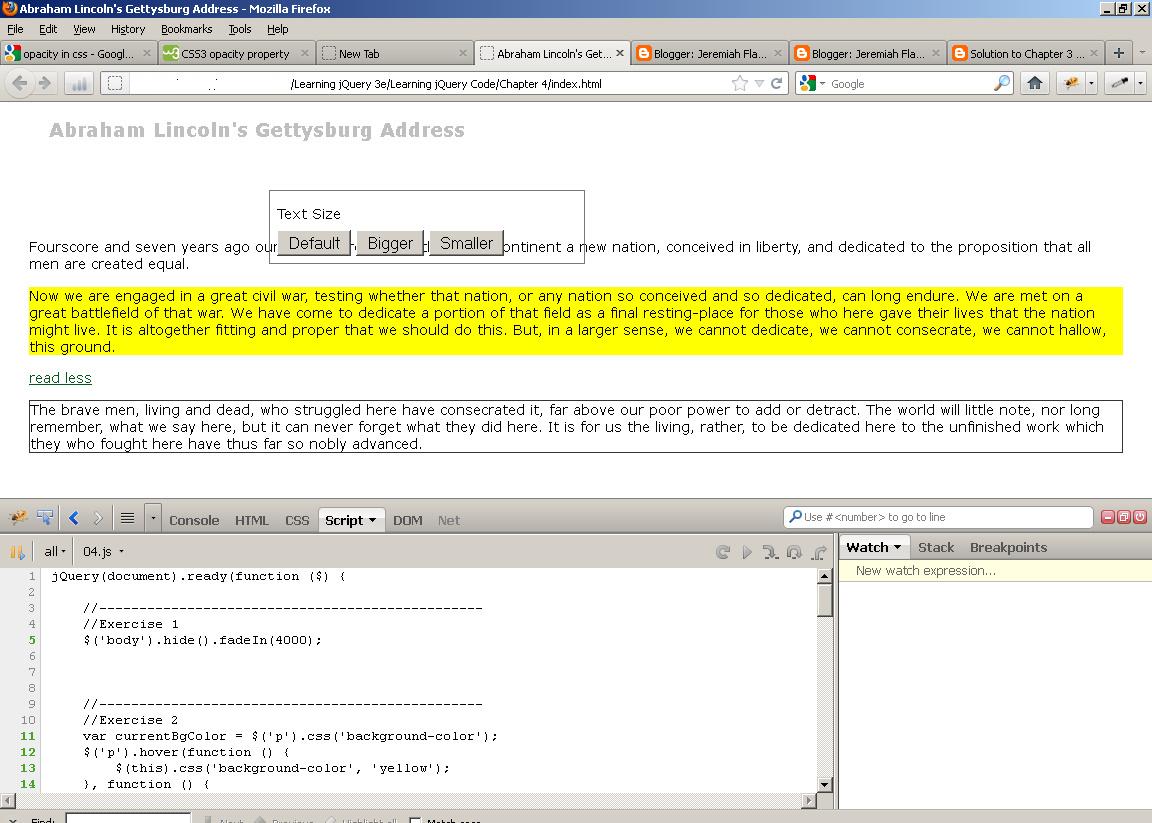
This is a sample screenshot:


Free Lessons for Chruch Pianists:
Free lessons, tips and downloads for church pianists

DVD Courses (Reharmonization, Play by Ear!, Arranging, Accompanying, Theory for Church Pianists, etc.):
Over 30 hours of DVD instruction for church pianists


Visit Vitabase for Quality Health Supplements